
Google reCAPTCHA setup
To use Google reCAPTCHA you now need to create a cloud account, set up the reCAPTCHA API and enable billing. At the time of writing (Feb 2026) the first 10,000 usages a month are free and then Googloe wants to charge $8 per 100,000. The free tier should be adqueate for the majority of our clients, but needs to be kept in mind in case it might be used on something that is going to be hugely popular.
There are alternatives; such as ALTCHA that is self-hosted and takes an alternative approach to proving connections come from humans.
Initial setup
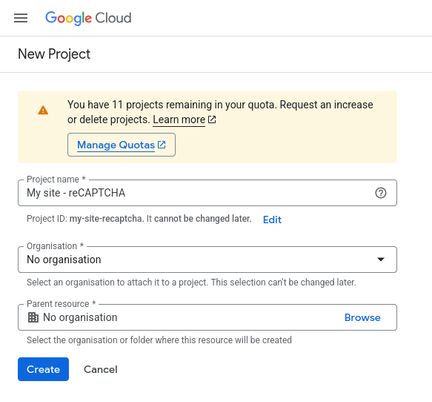
To get started login to Google, go to the Google Cloud console and create a new project.
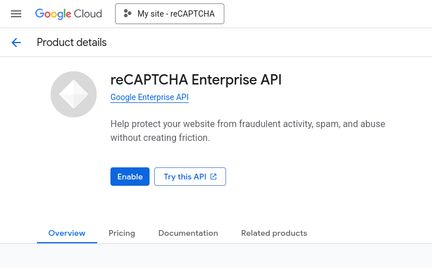
Once you have a project, enable the reCAPTCHA API.
Create reCAPTCHA key
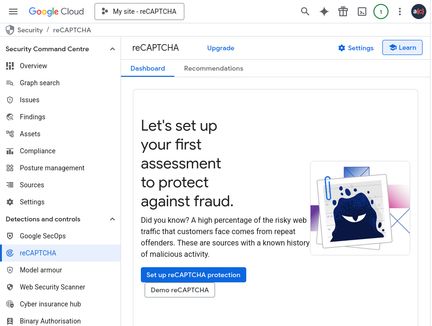
You can now setup reCAPTCHA, by clicking Set up reCAPTCHA protection
- Give the reCAPTCHA key a name.
- Ensure the application type is web.
- Add a list of domains this key can be used on. This should be the top-level domain for the site (e.g. example.com).
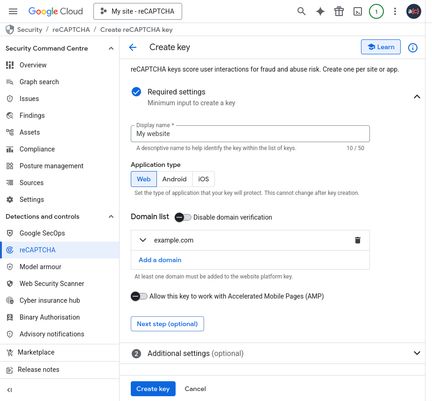
- Click 'Next step (optional)'.
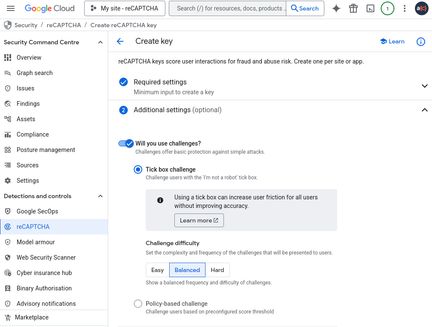
- Check 'Will you use challenges?', leaving the defaults.
- Click 'Create key'.
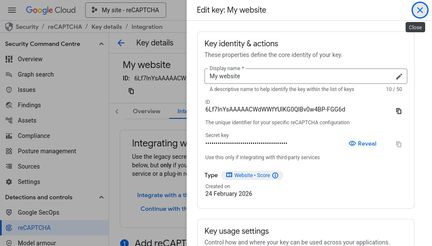
Once the key has been created, click edit key. We will need the key ID and the secret key to add to the reCAPTCHA Drupal module.
Add billing
To ensure the reCAPTCHA key doesn;t stop working you should add a billing account.
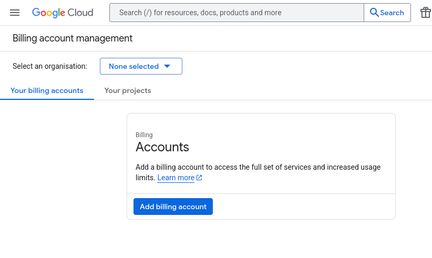
In the Google Cloud console, open the left-hand menu and click Billing. Then click 'Add billing account' and follow the steps needed to add payment information.
References
Last updated: